Contents:
- What Is Brand Setup?
- How to Use Brand Setup
Upload Your Logo
Set Your Colors
Choose Your Fonts
Save & Apply Changes
What Is Brand Setup?
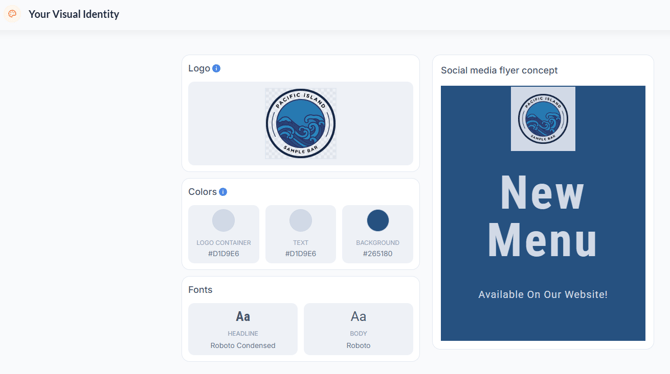
Brand Setup is a centralized page where you define how your brand appears across your marketing content. It allows you to upload and manage key assets—like your logo, colors, and fonts—which are automatically applied to your flyers and videos, ensuring everything reflects your brand by default without manual styling.
The feature currently applies to marketing flyers, QR code flyers, email templates, and social media flyers and videos generated for your Facebook and Instagram posts. Support for additional marketing content is coming soon.
Why it matters:
- ⏱️ Save time — apply your logo, colors, and fonts once instead of updating each flyer and video manually
- 🎯 Stay consistent — maintain a cohesive look across your content
- 🔄 Update at scale — changes apply to existing and future flyers/videos
- ✨ Look more professional — polished, unified visuals every time
How to Use Brand Setup?
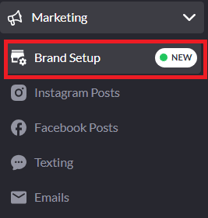
To get started, log in to your SpotHopper account and navigate to Marketing → Brand Setup from the left-hand sidebar.
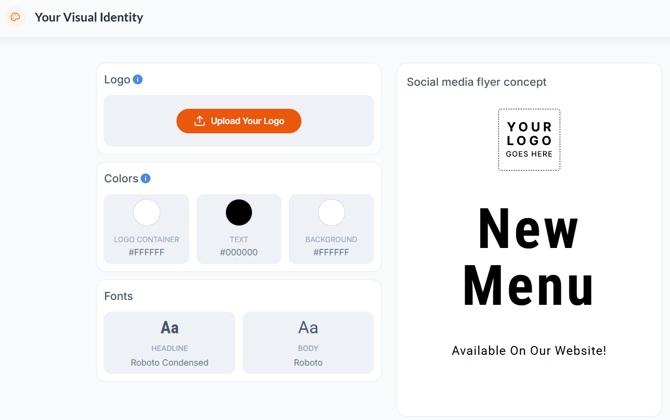
Once there, you can upload your logo and set your default colors and fonts for your flyers and videos.
Upload Logo
To upload your logo, click the orange "Upload Your Logo" button and select the file from your device.
Logo Requirements
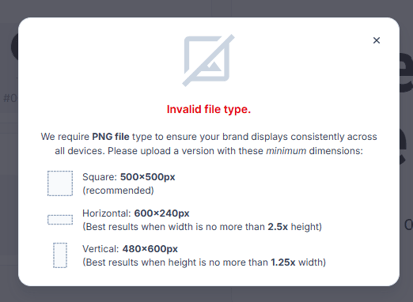
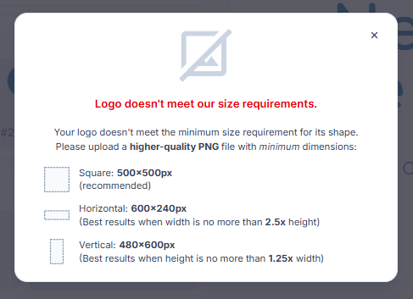
To ensure your logo displays correctly across all designs, please upload a PNG file that meets the recommended specifications below:
| Logo Shape | Recommended Aspect Ratio | Recommended Minimum Size |
|---|---|---|
| Vertical | 0.8 | 480 × 600 px |
| Square | 0.8 – 1.25 | 500 × 500 px |
| Horizontal | 1.25 – 2.5 | 600 × 240 px |
-
Logos can be any shape as long as they fit within the supported aspect ratios above.
-
For best results, use a transparent background so your logo blends seamlessly into different designs.
⚠️ If your file doesn't meet these requirements (for example, if it's a JPG or SVG, or below the minimum size), you'll see an error message prompting you to upload a valid PNG.
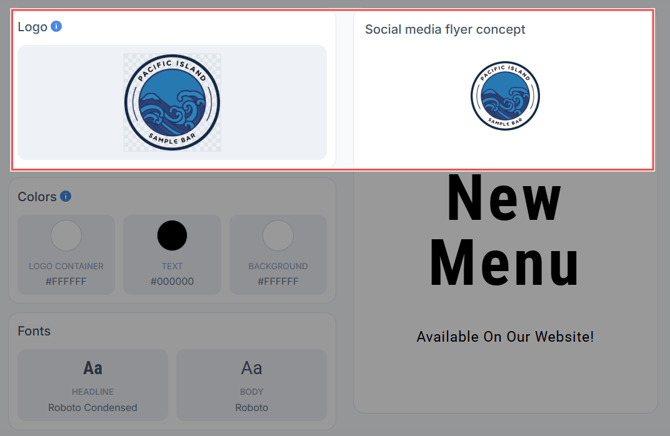
Once successfully uploaded, your logo will appear in the Logo section and be reflected in the preview on the right.
Set Your Colors
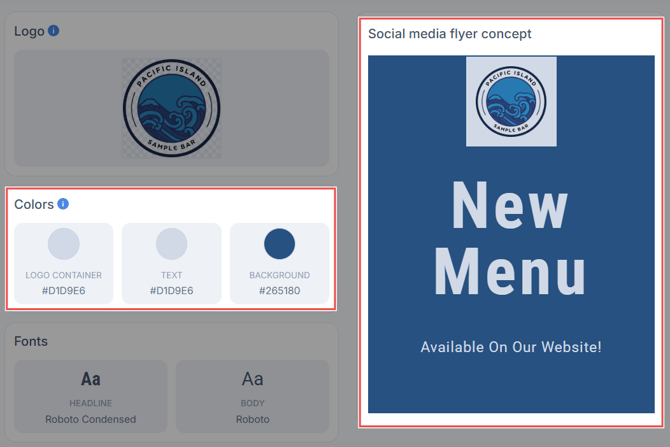
You can customize the colors used across your flyers by updating the following:
- Logo Container — the background behind your logo
- Text — used for headlines and messaging
- Background — the overall flyer background
To make changes, click on any color option and choose a new color.

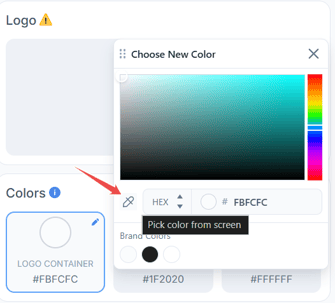
You can choose a color by selecting it from the color picker, entering a HEX or RGB value manually, or sampling a color directly from your screen.
The color picker defaults to HEX format, but you can switch between HEX and RGB using the dropdown within the color picker.
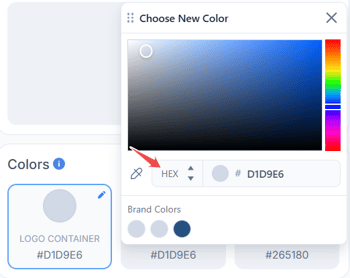
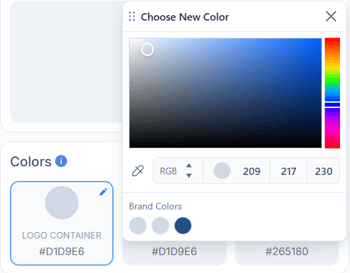
If you don't know the exact color, click the eyedropper tool in the lower-left corner of the color picker to sample a color directly from your screen.
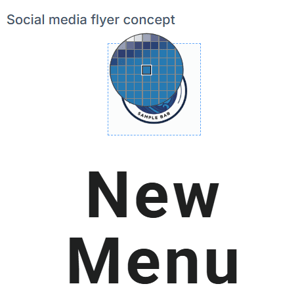
To match a color from your website or another brand asset, open it side-by-side with SpotHopper before activating the eyedropper tool, as you cannot switch between tabs or windows while selecting a color. 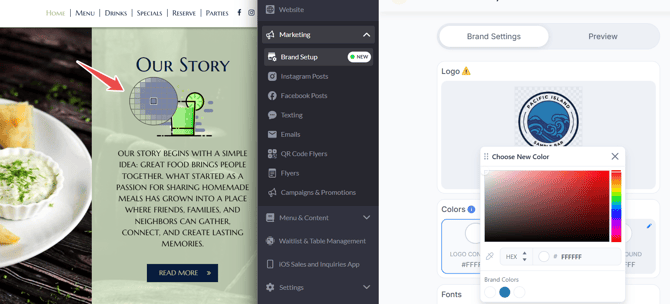
Once done, your selected colors will appear in the Colors section and update in the preview on the right.
ℹ️ For visual variety, text and background colors may occasionally be swapped across designs while maintaining a cohesive, on-brand look.
Choose Your Fonts
Choose the fonts used across your flyers and videos by selecting:
- Headline Font — used for titles and key messaging
- Body Font — used for supporting text
To update a font, click on the font field (Headline or Body).
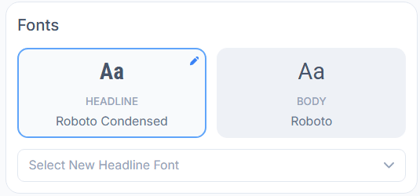
Then select a new font from the dropdown list. You'll have access to a large library of Google Fonts, and can use the search bar to quickly find a font that matches your style.
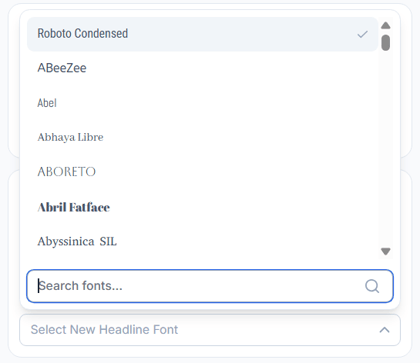
Once selected, the new fonts will be reflected in the flyer preview on the right.
Font selections do not apply to email templates, which use standard fonts to ensure consistent display across email providers.
Save & Apply Changes
After customizing your logo, colors, and fonts, review the flyer preview on the right. If everything looks good, click the green "Save & Update Flyers" button in the lower-right corner.
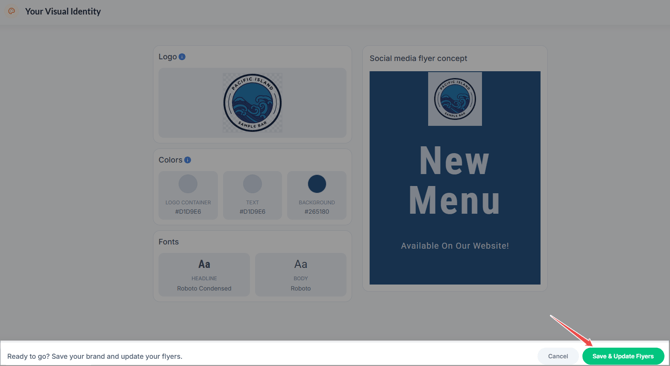
A banner will appear at the bottom of the page letting you know your changes are in progress.

This process may take a few minutes. Once your updates are ready, you'll be notified directly in the platform.
- If you're still on the Brand Setup page, a banner at the bottom of the screen will notify you that your social media content is ready.

- If you're elsewhere in the platform, you'll see a notification pop-up prompting you to review your updated content.
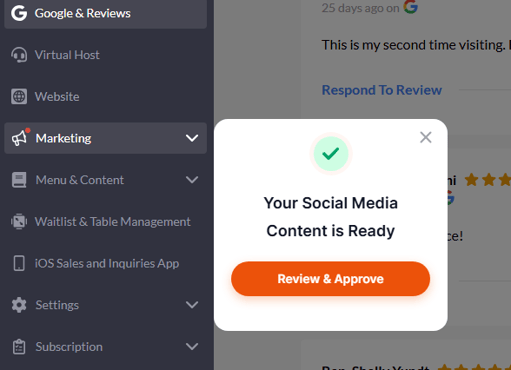
Click "Review & Approve" to open the calendar page where your social media posts are listed. From there, you can review your updated flyers and videos and approve the ones you want to publish.
⚠️ Changes made in Brand Setup apply to both existing and future marketing content. Flyers and videos that were previously edited or approved will not be affected by Brand Setup updates.
The selected logo, colors, and fonts are saved on the Brand Setup page, so you can revisit it at any time to see exactly what's being used and make updates as needed.