
Contents
- What Is a Contactless Menu?
- Accessing Your Contactless Menu
- How Guests Use the Contactless Menu
- Managing Your Contactless Menu
- WATCH: How to Use Free QR Code Flyers
What Is a Contactless Menu?
Contactless menus let customers access your restaurant’s menu digitally by scanning a QR code with their phone. The menu opens instantly on their device, removing the need for printed menus.
The contactless menu is designed for quick, easy browsing. Menu sections are clearly organized, item descriptions are easy to read, and prices are visible at a glance in a mobile-friendly layout.
Note: The contactless menu is view-only. Your guests can browse menu items and prices, but orders cannot be placed through the contactless menu.
Accessing the Contactless Menu
You can access the QR code for your contactless menu in several places within SpotHopper, depending on how you plan to use it.
QR Code Flyers
Go to Marketing → QR Code Flyers to browse available flyer designs.
Many flyers include the contactless menu QR code along with other QR codes. In these designs, the "Our Menu" QR code opens your contactless menu.
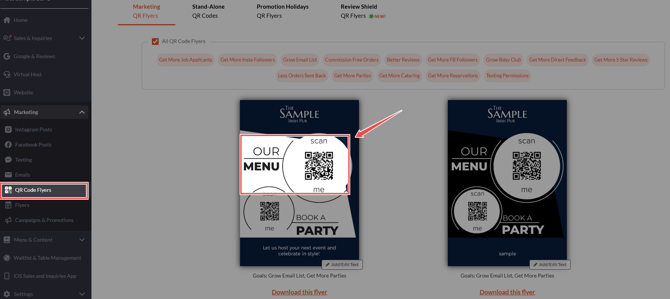
Some flyers are designed to focus only on menu viewing and include just the contactless menu QR code. These menu-only flyers can be found under the "Less Orders Sent Back" and "Grow Email List" categories.

You can also add custom text to the bottom of menu-only flyers to personalize them for your restaurant.
Stand-alone QR Codes
If you need just the menu QR code by itself, go to Marketing → QR Code Flyers, and click the Stand-Alone QR Codes tab at the top. Then scroll down to find the "Save Money on Menus" QR code.

This option lets you download a single QR code that links directly to your contactless menu, without any additional messaging or calls to action.
Menus page
You can also access the contactless menu QR code directly from the Menu page. Just navigate to Menu & Content → Menu, and open any menu page. You will find the "QR Code for Menu" button in the upper right corner.

Tip: You can download the contactless menu QR code and use it on its own—place it around your restaurant for in-house scanning, or use it to design your own custom table tents, signage, or printed materials.
How Guests Use the Contactless Menu
-
Customers scan the QR code using their smartphone camera. Any modern smartphone can scan the code, and no app download is required.
-
The contactless menu opens in the customer’s web browser.
-
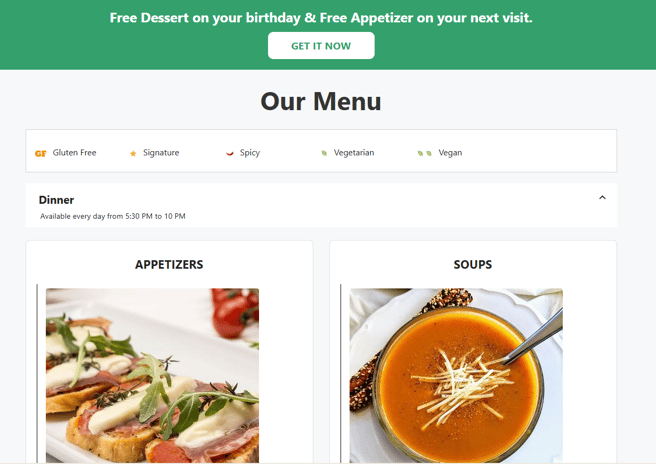
Customers browse menu sections, view item descriptions, and check prices directly on their device.
If your restaurant has an active Birthday Club and/or incentives, those offers appear at the top of the contactless menu. Customers can review available rewards and sign up before continuing to browse the menu.
Managing Your Contactless Menu
The contactless menu is simply your regular SpotHopper menu displayed in a digital format. This means any updates you make to your menus in SpotHopper are automatically reflected on the contactless menu.
When you update menu items, descriptions, prices, photos, or categories from the Menus page, those changes appear on the contactless menu as soon as they are saved and published. There is no need to generate or reprint a new QR code.
You can also control which menus appear on the contactless (QR code) menu directly from the menu settings.
To show or hide a menu on the contactless menu:
-
Go to Menu & Content → Menu and open the menu you want to manage.
-
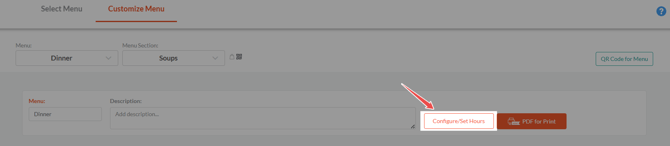
On the right side of the page, click "Configure/Set Hours" to expand additional menu settings.
-
Use the "Show on QR Code Menu" dropdown to choose whether the menu should be shown or hidden.

-
Click Save to apply your changes. The contactless menu updates immediately to reflect your selection.
📌 Learn more about QR code flyers! For additional details and usage tips for QR code flyers, see our "How to Use SpotHopper QR Code Flyers" guide.
WATCH: How to Use Free QR Code Flyers