
Contents:
Accessing the Template Editor
-
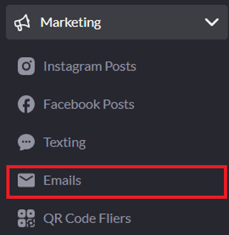
Navigate to the "Emails" page under "Marketing."
- Click the orange "Template Editor" button in the top-right corner.

-
Your newsletter template editor page will open. Use the toggle at the top of the page to switch between Single Section Email Preview and Multiple Sections Email Preview.

The editor is divided into two main areas:
-
The live preview on the left shows how your email will look as you make changes.
-
The settings panel on the right is where you select sections and customize styling, content, and layout options.
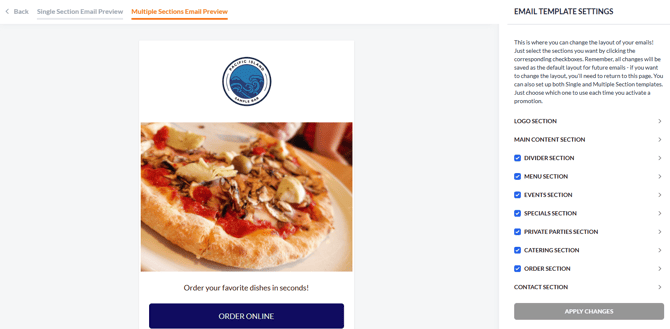
Any updates made in the settings panel are reflected immediately in the live preview. Changes are saved once you click Apply Changes.
Important: The Logo, Main Content, and Contact sections are shared between both templates. Any changes made to these sections in either the Single Section or Multiple Section template will automatically apply to the other.
Single Section Email Template
For simpler, single-section emails, you can customize the email layout styling and contact information.
Within this template, you can edit the following sections:
Logo Section
Use this section to control the background color behind your logo and adjust the logo size.

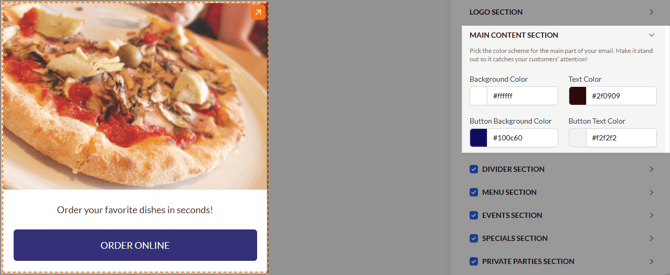
Main Content Section
These settings control the style and appearance of the main body of your email. You can adjust the background and text color, as well as customize the button appearance.
Contact Information
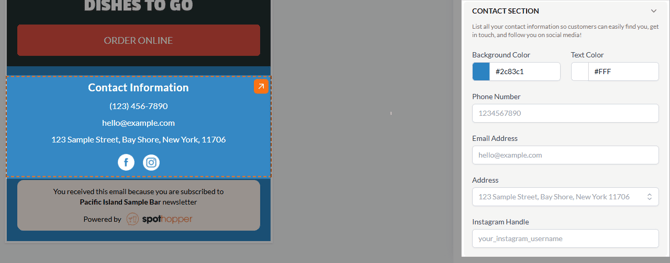
The Contact Information section appears at the bottom of your email campaigns. By default, it displays the sender email, phone number, and physical address from your account.
You can override this information if you’d like your emails to show different contact details (for example, if you prefer to use a separate phone number or email address for marketing). This section also allows you to customize the background and text colors.
⚠️ Since changes to these sections apply across both templates, it doesn’t matter which template you customize them from. Updates to the Logo, Main Content, and Contact sections made in the Multiple Section Email template will also apply to Single Section emails.
Multiple Section Email Template
In addition to the basic options explained above (Logo, Main Content, and Contact sections), the Multiple Section Email template lets you build more detailed newsletters by combining and customizing multiple content sections to share more information in a single email.
To include a section in your multi-section emails, make sure it is selected in the editor.
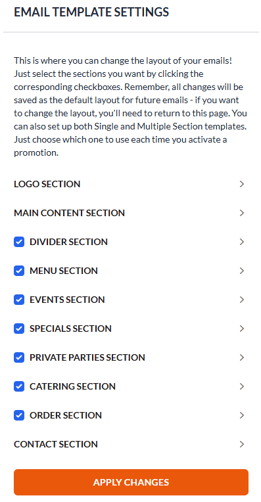
When you click on a section in the list—or directly from the live preview—its settings will open. Most sections share the same core customization options shown below.
-
All sections allow you to customize background and text colors.
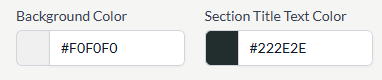
-
For some sections, you can customize the section title text.
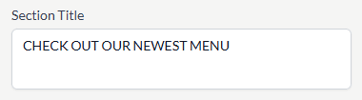
-
Sections that include buttons also allow you to customize button colors.

-
Some sections include an Image Link field, where you can paste a direct, publicly accessible image URL to display an image within that section.

Below is additional configuration information for each available section:
Divider Section
The Divider section is used to visually separate the main content of the email from the sections below it.
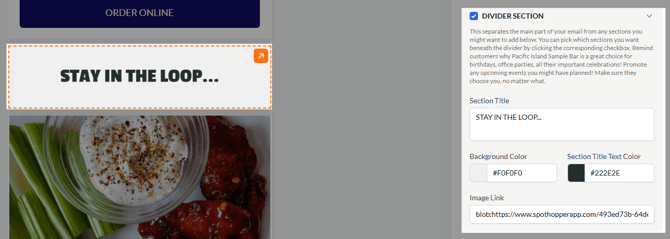
You can either add a section title, so it only displays text, or you can add an image by pasting the URL into the Image Link box.
Menu Section
Selecting this section highlights your menu in the email and allows subscribers to quickly access your menu page.
The section displays an image from your menu page along with customizable text below it, or you can choose to add an additional image instead of the text.
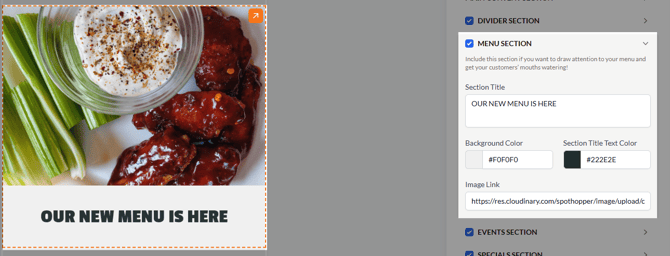
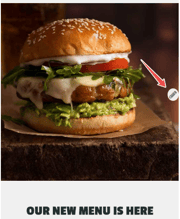
The image shown in the editor is just a placeholder. To check how the email will look, visit the Marketing → Emails preview page.
You can update the menu image by clicking the associated pencil icon and replacing it with a different one.
Events Section
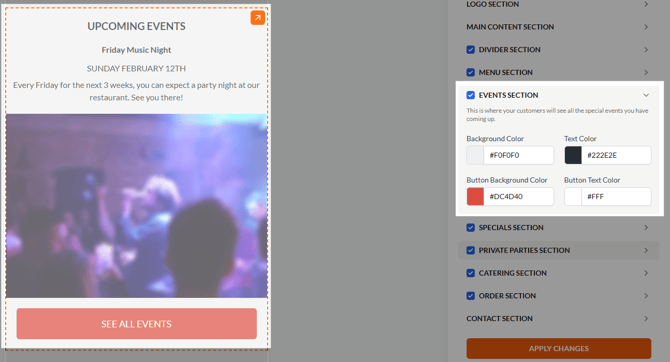
The Events section automatically displays events scheduled to occur within one month of the email’s scheduled send date. Events are pulled directly from your SpotHopper account and update based on when the email is sent.
Specials Section
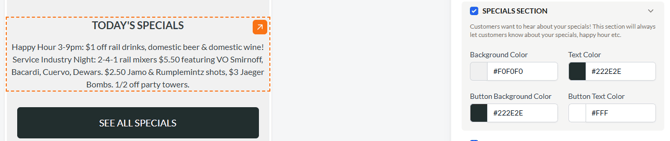
The Specials section displays your daily special based on the email’s send date. For example, if an email is scheduled to go out on a Tuesday, the section will display your Tuesday special.
Private Parties, Catering, and Order Sections
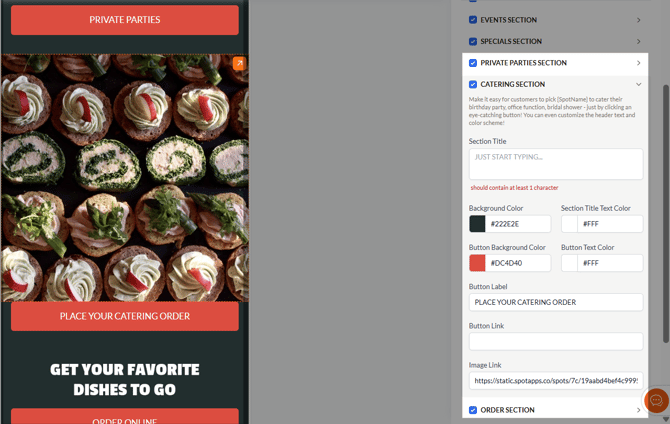
The Private Parties, Catering, and Order sections are call-to-action sections. For each section, you can customize the title, button label, and button link to direct subscribers to the appropriate page. You may also add an image using the Image Link field to visually support the call to action.
Tip: Need to find out the exact color code for one of your brand’s colors? Use this tool to upload a photo and hover over the image to view the corresponding color codes.