
Contents:
Updating Cover (Slideshow) Photos
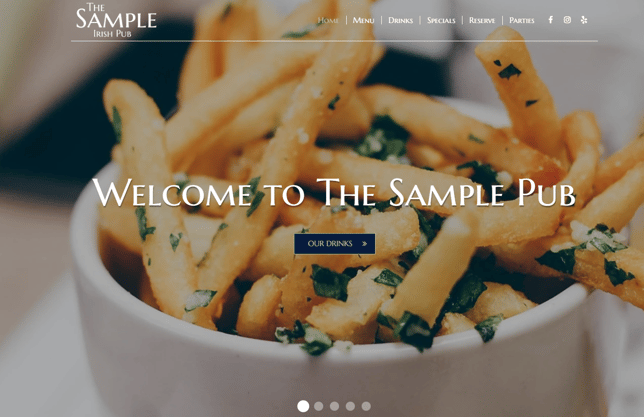
You can manage the images that appear on your website’s cover section directly within the SpotHopper platform.
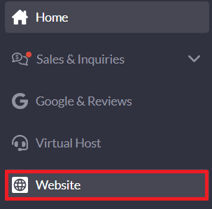
- Start by navigating to the "Website" tab from the left-hand side menu.
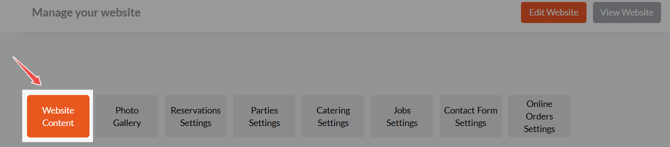
- Make sure you are on the "Website Content" tab.
-
Select how your cover images are displayed:

-
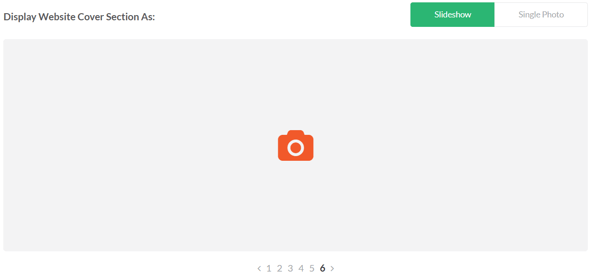
Slideshow: Multiple images will rotate within your cover section. You can replace an existing image using the edit (pencil) icon or remove a slide using the trash icon. You can also adjust the order of the slides using the "Slide Order" controls in the upper-right corner of the image.
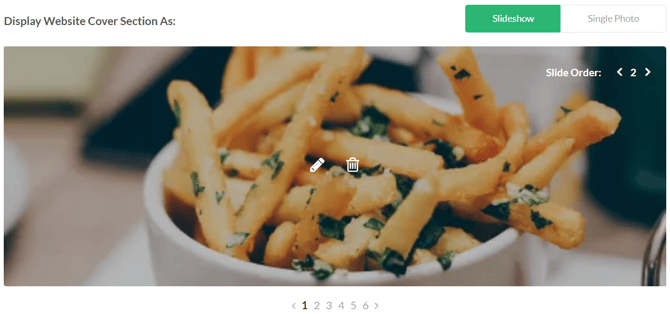
To add a new slide, navigate to the last slide using the slide numbers, then upload a new image.
-
-
-
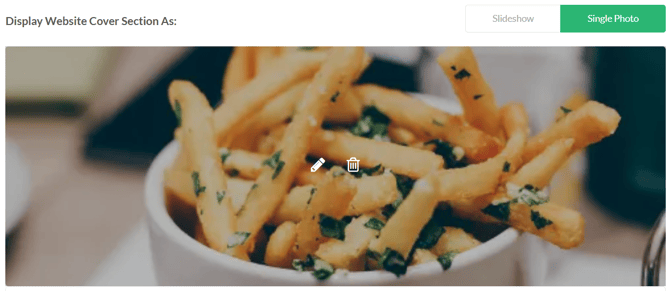
Single Photo: Only one image will be displayed in the cover section. Click on the image area to upload a new photo, replace the existing one using the edit (pencil) icon, or remove it using the trash icon.
-
You can only add/update the cover images through the platform. To add text or buttons to the cover (slideshow) images, please contact your support agent.
If your cover image already includes text or a button, you can edit it using the Website Editor.
Updating Gallery Photos
You can choose which images appear on your homepage gallery directly from your SpotHopper dashboard.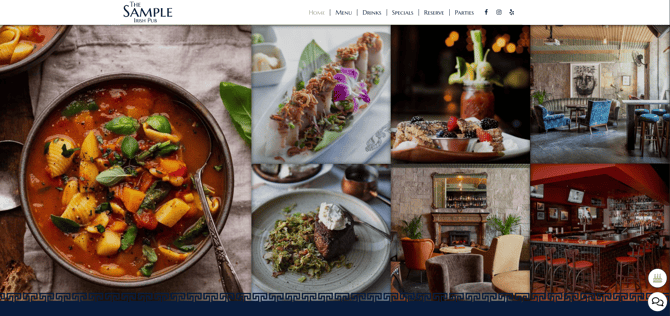
- Click the "Website" tab from the left-hand side menu.
-
Navigate to the "Photo Gallery" tab.

-
You will see all available images in your gallery.
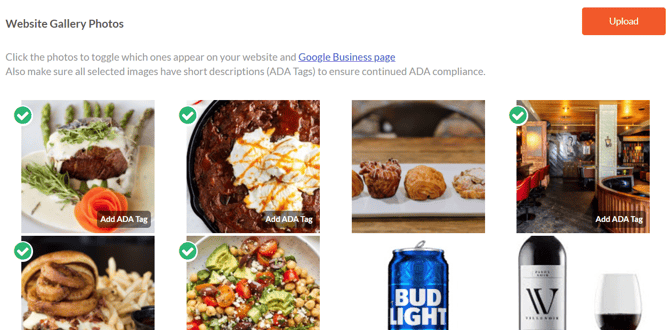
- To display an image on your homepage gallery, click on the image. A checkmark will appear, indicating that the image is selected and visible on your website.
- To remove an image from the homepage gallery, click the image again. The checkmark will disappear, and the image will no longer be displayed.
To add a new photo to your gallery, click the orange "Upload" button in the upper-right corner and select an image from your device. Once it's uploaded, click the image to display it on your homepage gallery—the checkmark will indicate it’s selected.
Only the images marked with checkmarks are displayed on the homepage gallery.
Custom Section Images
Some images on your homepage may appear within custom sections, such as those that highlight orders, reservations, or your About Us content.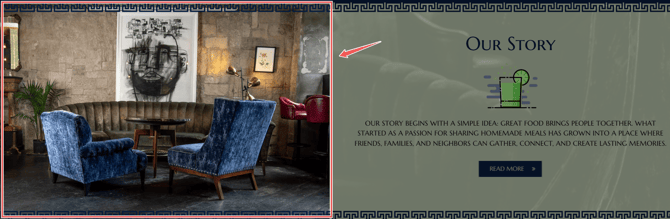
These images cannot be managed directly from the dashboard and can only be updated using the Website Editor.
👉 For step-by-step instructions, please visit our "How to Use the Website Editor" article.