
Contents:
- Setting Deposits
Handling Deposits - Setting Up Cancellation Fees
Charging a Cancellation Fee
Refunding a Cancellation Fee
Important: A connected Stripe account is required to use deposits and cancellation fees. If you haven't connected Stripe yet, learn how to do so here.
NOTE: The instructions in this article are for the old inquiry details page. If you have already switched to the new and improved page, you can find the Cancellations & Deposits Instructions here.
Deposits
Deposits secure your reservations by collecting a small payment from guests when their booking is confirmed.
1. To set up deposits, go to "Reservations" under "Sales & Inquiries," then click on the "Settings" tab.

2. Scroll down to the "Payment Settings" section.
3. Under the Available Payment Types, choose "Deposit" and enter the default deposit amount you want to capture from your guests.
-png.png?width=670&height=399&name=annotely_image%20(96)-png.png)
4. Add the acceptable cancellation time — the minimum number of hours prior to the reservation that guests must cancel to receive a refund.
- If a guest cancels outside this window or doesn’t show up, you can choose to keep the deposit.
5. Click "Save Changes" when you're done.
How will this look for your guests?
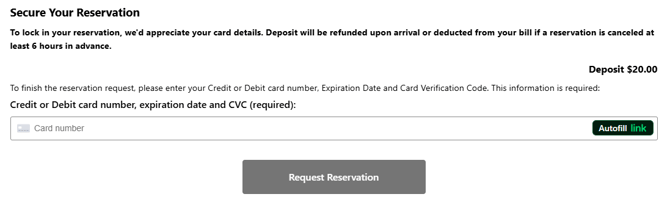
When making a reservation, guests must enter their credit card details and secure the required deposit in order to submit the reservation inquiry.
Handling Deposits
1) Receiving the Deposit and Transferring Funds
When a guest enters their credit card details, the deposit is charged immediately. However, the funds are held and are not transferred to your account until the reservation is confirmed.
-
If auto-confirmation is enabled, the inquiry is confirmed at the time of booking and the funds are transferred automatically.
-
If auto-confirmation is disabled, the funds remain on hold until you manually update the inquiry status to "Confirmed."
-
If the inquiry is not confirmed within seven days, the held funds are automatically released and returned to the guest.
Once confirmed, the deposit is transferred to your Stripe account.
To view the payment status, just open the inquiry details page and scroll down to the Payment Details section.
If the reservation hasn't been confirmed yet, the payment status will show "Authorized."

Once you confirm the reservation, the funds will be "Captured."

2) When the Guest Arrives
You can choose to apply the deposit toward the guest’s bill and reduce their total, or refund the deposit amount upon their arrival.
3) If the Guest Cancels
-
If they cancel outside your cancellation window or don’t show up, you may keep the deposit if you'd like to.
-
If they cancel within the allowed window, you’ll need to manually refund the deposit, as SpotHopper doesn't automatically issue refunds.
-
To refund the deposit, go to the specific reservation's inquiry details page, and click the "Refund Payment" button found below the payment status.

- A confirmation pop-up will appear. To refund the deposit amount, hit the green "Issue Refund" button.
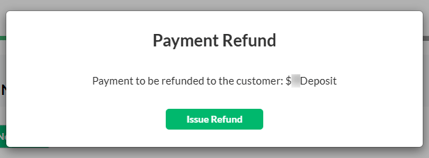
- After the deposit has been refunded, the payment status will reflect that.

Cancellation Fees
Cancellation fees let you charge guests who cancel late or don’t show up, helping protect your business from last-minute cancellations and lost revenue.
Setting Up Cancellation Fees
1. To set up a cancellation fee, go to "Reservations" under "Sales & Inquiries," then click on the "Settings" tab.
2. Scroll down to the "Payment Settings" section.
3. Under the Available Payment Types, choose "Cancellation Fee" and enter the default amount you want to charge your guests if they cancel outside your cancellation window.
-png.png?width=667&height=400&name=annotely_image%20(95)-png.png)
4. Add the acceptable cancellation time. This sets the cancellation window — how many hours before the reservation guests can cancel without being charged a fee.
- If a guest cancels outside this window or doesn’t show up, you can manually charge the cancellation fee.
5. Do not forget to click "Save Changes" when you're done.
How will this look for your guests?
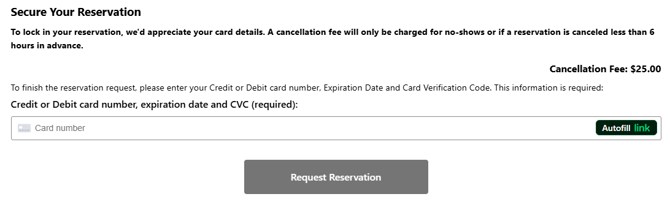
When making a reservation, your guests will be prompted to add their credit card details. Please note that their payment info will only be captured, and they won't be charged any fee at this stage.
Charging a Cancellation Fee
If your guests don't show up or cancel outside your cancellation window, you have the right to charge them the cancellation fee, using the credit card information captured at the time of making the reservation.
⚠️ Cancellation fees are not charged automatically. For every no-show or last-minute cancellation, you will have to manually charge your customers the default fee if you decide to. To do so, you must first change the inquiry status to "Cancelled."
- Open the specific reservation's inquiry details page and make sure the status is set to "Cancelled."
- Scroll down to the Payment Details section. The payment status should read "Setup Intent Authorized," which indicates that the guest’s payment information is on file.
- To charge the cancellation fee, click the "Capture" button. The customer will be charged immediately.

- After the charge is complete, the payment status will update to"Payment Captured."

Refunding a Cancellation Fee
If you want to refund a cancellation fee, you can easily do so from the same place where you originally charged it.
- Open the inquiry details page and scroll down to the Payment Details section.
- Below the captured payment status, click the "Refund Payment" button.
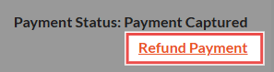
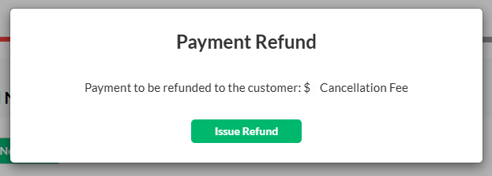
- A confirmation pop-up will appear. To refund the cancellation fee, hit the green "Issue Refund" button.
- Once the refund is processed, the payment status will reflect that.
