---
title: Using Timeline View to Manage Tables and Guests
description: Learn how to use the Timeline View in SpotHopper’s Table Management App to seat guests, track table usage, manage future reservations, and assign tables using the Next in Line feature.
---
[Skip to content](https://howto.spothopperapp.com/knowledge/timeline-view-seating-overview#main-content)
English
Show submenu for translations
[](https://www.spothopperapp.com/?hsLang=en)
Open main navigation
Close main navigation
- English
Show submenu for translations
- [Go to spothopperapp.com](https://www.spothopperapp.com/)
[Go to spothopperapp.com](https://www.spothopperapp.com/?hsLang=en)
Hello. How can we help you?
- There are no suggestions because the search field is empty.
1. [Help Center](https://howto.spothopperapp.com/knowledge?hsLang=en)
2. [Table Management](https://howto.spothopperapp.com/knowledge/table-management?hsLang=en)
# Using Timeline View to Manage Tables and Guests
## Learn how to use the Timeline View in SpotHopper’s Table Management App to seat guests, track table usage, manage future reservations, and assign tables using the Next in Line feature.
### **Contents**
- [**Switching to Timeline View**](https://howto.spothopperapp.com/knowledge/using-timeline-view-to-manage-tables-and-guests?hsLang=en#Switching)
- [**Navigating the New Sidebar Navigation**](https://howto.spothopperapp.com/knowledge/using-timeline-view-to-manage-tables-and-guests?hsLang=en#Navigating)
- [**Understanding Table & Guest Indicators**](https://howto.spothopperapp.com/knowledge/using-timeline-view-to-manage-tables-and-guests?hsLang=en#Understanding)
- [**Real-Time Updates**](https://howto.spothopperapp.com/knowledge/using-timeline-view-to-manage-tables-and-guests?hsLang=en#Updates)
- [**Navigating the Timeline**](https://howto.spothopperapp.com/knowledge/using-timeline-view-to-manage-tables-and-guests?hsLang=en#NavigatingtheTimeline)
- [**Seating Future Reservations Immediately**](https://howto.spothopperapp.com/knowledge/using-timeline-view-to-manage-tables-and-guests?hsLang=en#SeatingImmediately)
- [**Reservation Status Icons**](https://howto.spothopperapp.com/knowledge/using-timeline-view-to-manage-tables-and-guests?hsLang=en#StatusIcons)
- [**Reserving Tables**](https://howto.spothopperapp.com/knowledge/using-timeline-view-to-manage-tables-and-guests?hsLang=en#ReservingTables)
- [**Drag and Drop a Party to the Timeline**](https://howto.spothopperapp.com/knowledge/timeline-view-seating-overview#Dragging)
- [**Next in Line**](https://howto.spothopperapp.com/knowledge/using-timeline-view-to-manage-tables-and-guests?hsLang=en#Nextinline)
- **[WATCH: Using Timeline View to Manage Tables and Guests](https://howto.spothopperapp.com/knowledge/using-timeline-view-to-manage-tables-and-guests?hsLang=en#Video1)**
- [**WATCH: Drag and Drop Parties**](https://howto.spothopperapp.com/knowledge/timeline-view-seating-overview#Draganddropvideo)
### **Timeline View & Seating Overview**
- **Switching to Timeline View**
After adding tables, switch to **Timeline View** to see them listed vertically.
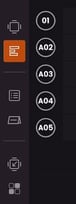
- The **center line** in the Timeline indicates the current time.

- Swiping to see past or upcoming reservations will move the center line to the left or right side of the screen.
No matter how far you scroll in either direction, you can easily return to the current day and time by **tapping the center line.**

(Swiping forward lets you see future table assignments.)

(Swiping back shows past bookings.)
- You can also return to the current day and time by clicking the **Today button** next to the date.

- **Navigating the new sidebar navigation**
- - You can now easily switch between Reservations and the Waitlist without ever leaving the timeline:
- Open the Timeline
- Click on either Waitlist 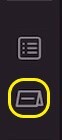 or Reservations  to expand the sidebar.
- **Understanding Table & Guest Indicators**
The Table and Guest icons in the bottom-left corner show the total table capacity and guest count for that specific room.
- 
In this example, **5 out of 17 tables** are occupied, with **11 guests assigned** to them.
Table capacities are listed **vertically on the right** to help you track the seating status of each table.

In this example, one table that seats two is unoccupied. Another table is occupied by a party of two, and a third is occupied by a solo guest.
- **Real-Time Updates**When a guest is assigned or seated, the table and guest counts update in **real time**. You can also view vacancy history by swiping to the right.
In this example, **5 out of 17 tables** are currently occupied by **11 guests.** An hour earlier, only **3 tables** were occupied by **6 guests.**
- 
- **Navigating the Timeline**To check upcoming reservations:
Tap the **right arrow** to move to the next day.

Or swipe left to skip ahead. If you swipe too far, the Timeline will automatically refresh to show the most accurate data for that day.
- **Guest Count & Overlapping Reservations (Reservation Conflicts)**The guest count automatically updates when **overlapping** reservations create table **conflicts.**
In this example, the system updates both the guest count and table occupancy for the room in real time, even when reservations overlap.
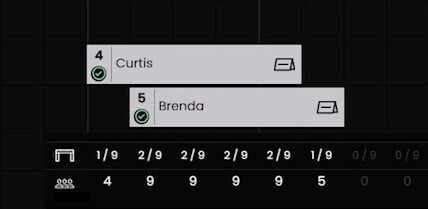
It’s up to you to determine how you’ll handle these conflicts: by moving the conflicting party to a different table, changing the desired reservation time or duration, or freeing the table of a reservation.
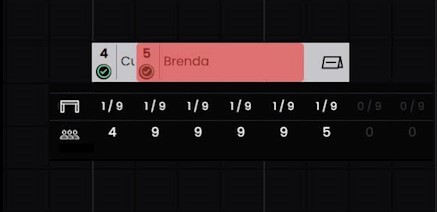
*One solution: Move the conflicting party to a different table (shown below).*
- **Seating Future Reservations Immediately**
- To seat a **future reservation** immediately:
- Select the reservation.
- Tap **"Seat Now"** from the new window.
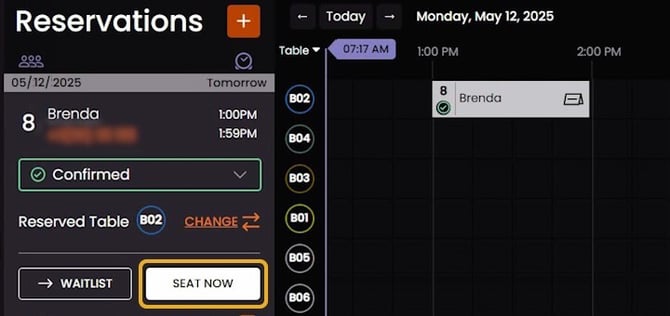
- The app will update the reservation time to the **current time**.
- Clicking **Party Seated** sends the guest to their assigned table.
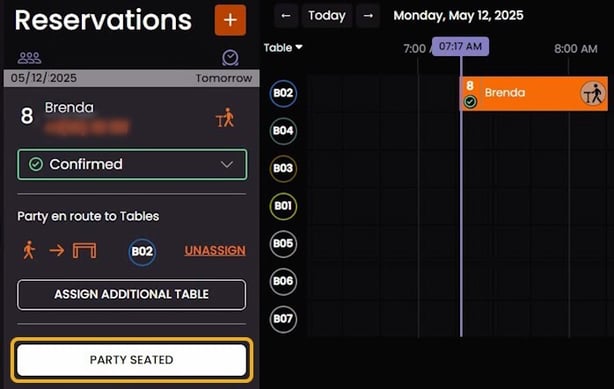
*Currently marked as 'assigned', the party has been notified but not seated yet.*
- Clicking **Party Seated** will mark the guest as officially seated.
*The seated party is labeled with a plate-and-utensils icon, indicating that the guests are actively dining.*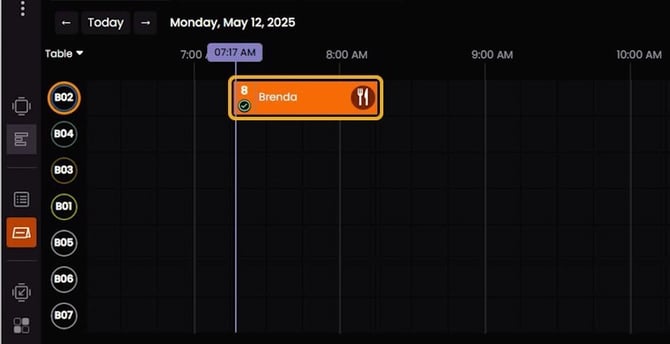
- **Reservation Status Icons**
- **Reservation Icon** – Reservation with assigned table only.
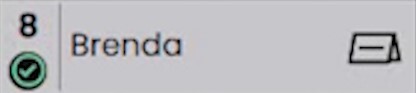
***Meaning:** The reservation is confirmed and linked to a specific table.*
***Status:** No arrival or seating action yet.*
***Appears when:** The reservation is scheduled and a table has been assigned, but no further action has been taken.*
- **Pre-Seated Icon** – Assigned (Pre-Seated)
**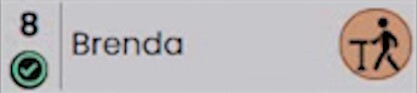
*Meaning:*** *The party has been notified and is on their way to the table.*
***Status:** Assigned, but not yet officially seated.
**Appears when:** After tapping **“Seat Now,”** but before tapping **“Party Seated.***
- **Seated Icon** – Seated
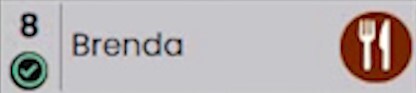
***Meaning:** The party has been seated and is currently dining.*
***Status:** Fully seated.*
***Appears when:** After tapping “Party Seated.”*
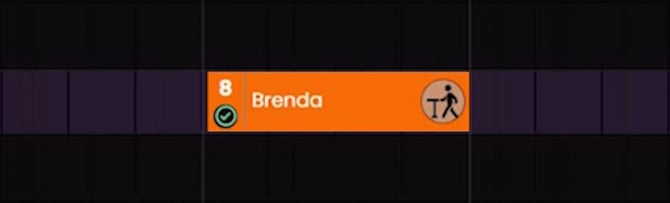
- **In-focus parties are highlighted in orange, no matter their current status.**
To help draw your attention, the entire row will also have a **light purple background**.
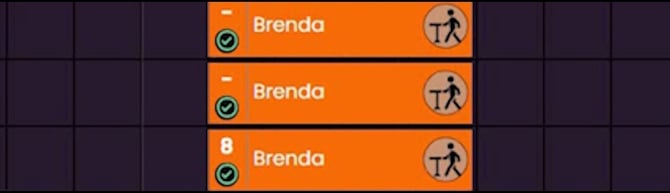
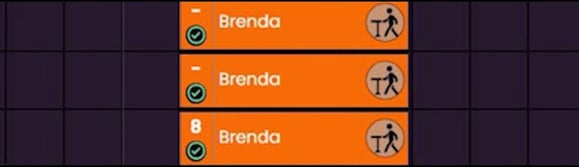
- - If a party is assigned to **multiple tables**, all cards will display the **same status icon.**
However, only the **original card**—the one **created first**—will show the **party size** (e.g., "8").
- **Reserving tables**
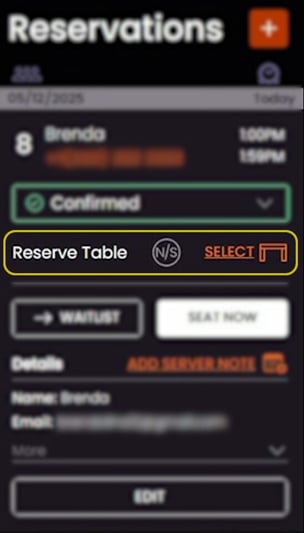
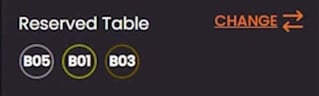
1. A table can be reserved ahead of time for any given reservation party. Simply expand the party tab and **select** the table you’d like to reserve.
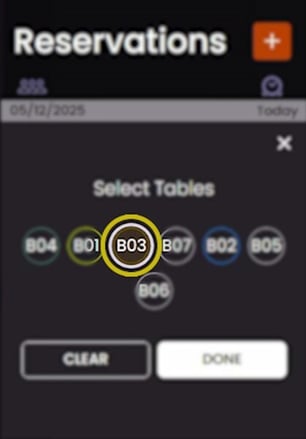
*A selection menu will appear, allowing you to **select** from the **tables** inside the room.
*
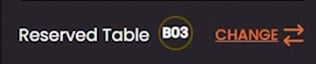
*You always have a clear view of **which tables** have been **reserved** for the specific party.*
*Additionally, you can assign **multiple** reserved tables.*
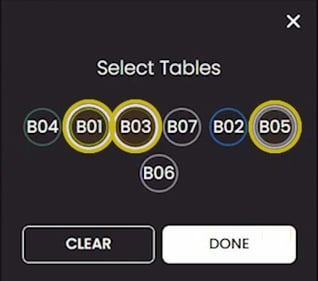
*The selected tables will show up in the **Reserved Tables** section after confirmation.*
- - Once a party is marked as **seated**, it behaves just like any party with **multiple tables** assigned, except now a **seating status icon** is also shown.
All related table blocks for that party will be **highlighted in bright orange**, making it easy to see exactly where they are and make any necessary adjustments in real time.
**Drag and Drop a Party to the Timeline**
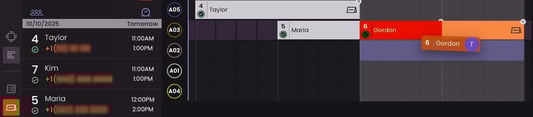
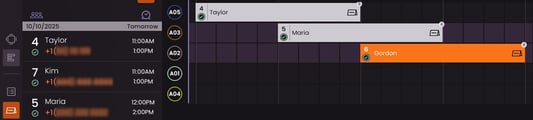
- Press the desired party in **Reservations** and drag it onto the **Timeline**.
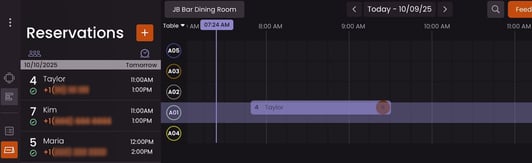
- The party now has **Reserved** status, scheduled for the requested time.
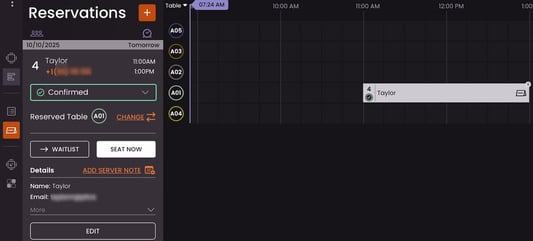
- You can reassign **Reserved** and **Pre-Seated** parties by grabbing them and dropping them onto any free table.
Conflicts can be resolved by dragging the conflicting parties to a different table, no matter if they're in the **Reserved** or **Pre-seated** status.
- **Next in line**
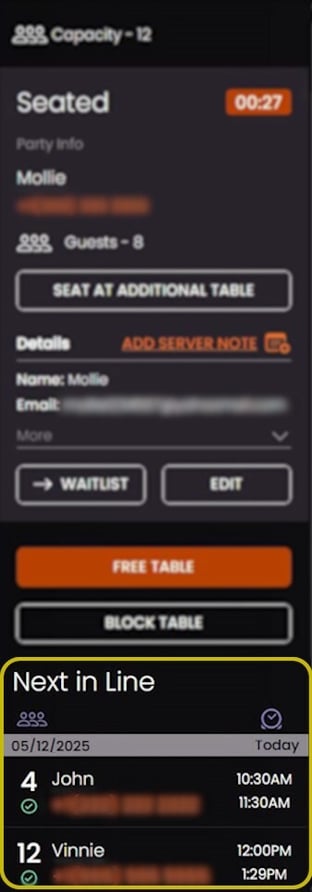
- - When multiple parties reserve the **same table**, they’ll appear in your “**Next in Line”** section.
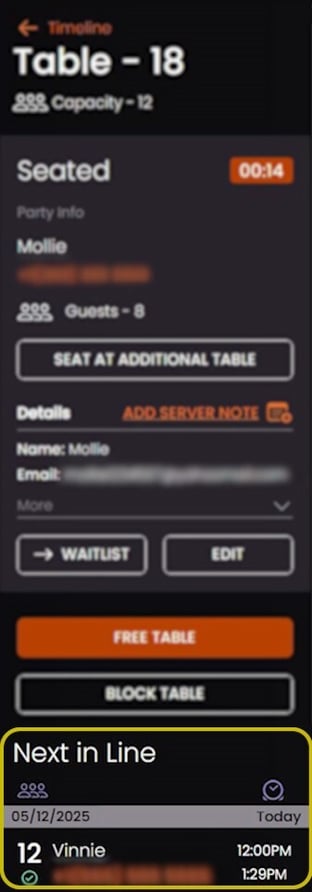
*This section becomes visible when you click on the **current reservation**, the **table number**, or any **block in that table’s row.***

If you **reassign a reservation** or **cancel another reservation** for any reason, any reservation assigned to the **same table** in a **different time slot** will appear in the **“Next in Line”** section.
- - How the **Next in line** works: Let’s focus our attention to **Table 6**. You’ve had a party seated there since 5:28pm:

- About an hour has passed and they’re ready to leave. You can **Free the table**:

- Great! Now you can select the party next in line:

- … and seat them instead:

- You have now seated a party without having to expand the info of each individual party card to find who’s up next for Table 6.
**Using Timeline View to Manage Tables and Guest**
**Drag and Drop Parties**
- [Promotions](https://howto.spothopperapp.com/knowledge/promotions?hsLang=en)
- [Social Media](https://howto.spothopperapp.com/knowledge/social-media?hsLang=en#main-content)
- [Connecting Facebook & Instagram](https://howto.spothopperapp.com/knowledge/social-media?hsLang=en#connecting-facebook-instagram)
- [Social Media Posts](https://howto.spothopperapp.com/knowledge/social-media?hsLang=en#social-media-posts)
- [Events](https://howto.spothopperapp.com/knowledge/events?hsLang=en)
- [Emails](https://howto.spothopperapp.com/knowledge/emails?hsLang=en)
- [Google & Reviews](https://howto.spothopperapp.com/knowledge/google-reviews?hsLang=en#main-content)
- [Connecting Google](https://howto.spothopperapp.com/knowledge/google-reviews?hsLang=en#connecting-google)
- [Google Integration](https://howto.spothopperapp.com/knowledge/google-reviews?hsLang=en#google-integration)
- [Google Reviews](https://howto.spothopperapp.com/knowledge/google-reviews?hsLang=en#google-reviews)
- [Reservations](https://howto.spothopperapp.com/knowledge/reservations?hsLang=en)
- [Private Party Management System](https://howto.spothopperapp.com/knowledge/private-party-management-system?hsLang=en)
- [Catering Management System](https://howto.spothopperapp.com/knowledge/catering-management-system?hsLang=en)
- [Event Planner](https://howto.spothopperapp.com/knowledge/event-planner?hsLang=en)
- [Texting](https://howto.spothopperapp.com/knowledge/texting?hsLang=en)
- [Inquiries](https://howto.spothopperapp.com/knowledge/inquiries?hsLang=en#main-content)
- [Managing Inquiries](https://howto.spothopperapp.com/knowledge/inquiries?hsLang=en#managing-inquiries)
- [Inquiry Hours & Availability](https://howto.spothopperapp.com/knowledge/inquiries?hsLang=en#inquiry-hours-availability)
- [Contact Us Form](https://howto.spothopperapp.com/knowledge/inquiries?hsLang=en#contact-us-form)
- [Notifications](https://howto.spothopperapp.com/knowledge/inquiries?hsLang=en#notifications)
- [Menus](https://howto.spothopperapp.com/knowledge/menus?hsLang=en)
- [Specials](https://howto.spothopperapp.com/knowledge/specials?hsLang=en)
- [Birthday Club/Incentives](https://howto.spothopperapp.com/knowledge/birthday-club-incentives?hsLang=en)
- [QR Code Flyers](https://howto.spothopperapp.com/knowledge/qr-code-flyers?hsLang=en)
- [Jobs](https://howto.spothopperapp.com/knowledge/jobs?hsLang=en)
- [Online Orders](https://howto.spothopperapp.com/knowledge/online-orders?hsLang=en)
- [Online Payments](https://howto.spothopperapp.com/knowledge/online-payments?hsLang=en)
- [Website Content](https://howto.spothopperapp.com/knowledge/website-content?hsLang=en)
- [Brand Setup](https://howto.spothopperapp.com/knowledge/brand-setup?hsLang=en)
- [Table Management App](https://howto.spothopperapp.com/knowledge/table-management-app?hsLang=en)
- [Table Management](https://howto.spothopperapp.com/knowledge/table-management?hsLang=en)
- [Virtual Host](https://howto.spothopperapp.com/knowledge/virtual-host?hsLang=en)
- [Administration](https://howto.spothopperapp.com/knowledge/administration?hsLang=en#main-content)
- [Business Info](https://howto.spothopperapp.com/knowledge/administration?hsLang=en#business-info)
- [User Management](https://howto.spothopperapp.com/knowledge/administration?hsLang=en#user-management)
- [Billing](https://howto.spothopperapp.com/knowledge/administration?hsLang=en#billing)
- [Calendar](https://howto.spothopperapp.com/knowledge/calendar?hsLang=en)
- [SEO Capabilities](https://howto.spothopperapp.com/knowledge/seo-capabilities?hsLang=en)
- [Mobile App](https://howto.spothopperapp.com/knowledge/mobile-app?hsLang=en)
- [Analytics](https://howto.spothopperapp.com/knowledge/analytics?hsLang=en)
- [Domain Access](https://howto.spothopperapp.com/knowledge/domain-access?hsLang=en)
[](https://www.spothopperapp.com/?hsLang=en)
spothopperapp.com Help Center
Copyright © 2026, SpotHopper Inc