
Contents:
- What Are QR Code Flyers?
- Accessing Your QR Code Flyers
Marketing QR Flyers
Stand-Alone QR Codes
Promotion QR Flyers
Review Shield QR Flyers - Downloading Your Flyers
- WATCH: How to Use QR Code Flyers
WATCH: How to Use QR Code Flyers
What are QR Code Flyers?
QR Code Flyers are pre-built templates in SpotHopper that link guests to specific pages using QR codes. With just a quick smartphone scan, customers can instantly access what matters most — from job applications and social media pages to private party inquiries or Birthday Club sign-ups.
The QR Code Flyers can be downloaded, printed, and placed in-house to guide guests to take action.
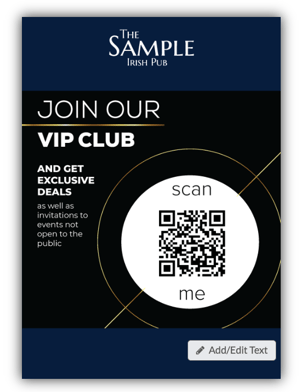
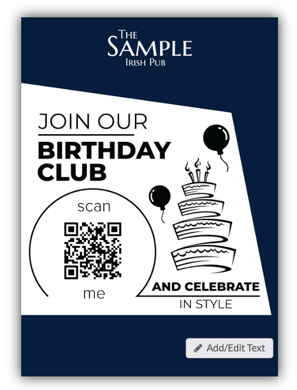
Accessing Your QR Code Flyers
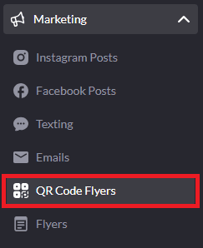
All of your QR code flyers are available on the "QR Code Flyers" page under Marketing.
Each tab in this section provides different tools for specific marketing and engagement goals.
Marketing QR Flyers
The Marketing QR Flyers tab is the default page you’ll land on when you click QR Code Flyers in your Marketing menu.
This section includes a wide variety of ready-to-use, professionally designed flyers that help you promote your restaurant both in-house and online — whether you want to grow followers, boost event bookings, collect more reviews, or attract job applicants.
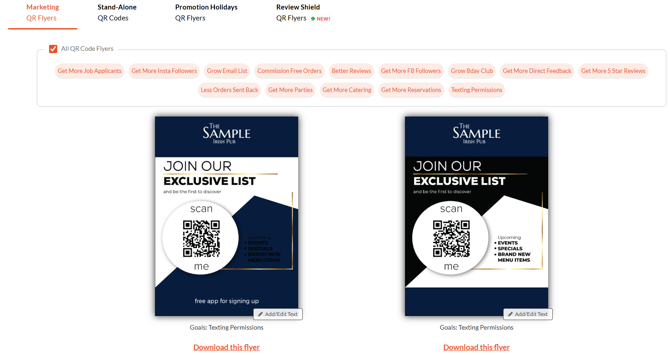
You can browse and filter by goal to quickly find the right flyers for your needs. Each filter represents a marketing objective — such as getting more orders, reviews, reservations, or sign-ups. Just select the filters that align with your goals, and SpotHopper will display the most relevant templates.
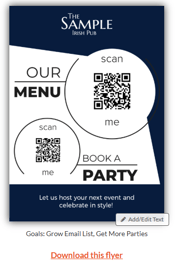
💡 Most high-performing flyers feature two QR codes:
- A Contactless Menu QR for guests’ main action
- A secondary QR for added engagement such as
booking, inquiries, or sign-ups.
This setup captures guests’ immediate intent while driving more leads and repeat business.
Stand-Alone QR Codes
To access this page, go to Marketing → QR Code Flyers, then click the "Stand-Alone QR Codes" tab at the top of the screen.
The Stand-Alone QR Codes section lets you download individual QR codes to use in your own materials — like menus, table tents, or custom signage. These are not full flyers, but flexible codes you can resize and place anywhere.
Each code connects to different SpotHopper tools — from revenue drivers like bookings, catering, and contactless menus, to guest engagement options such as feedback, social follows, and careers.
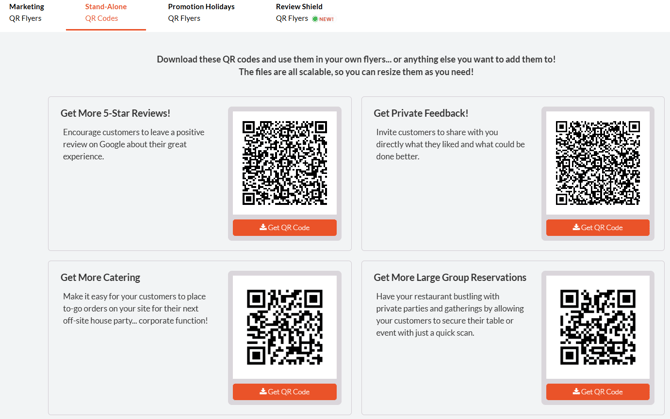
💡 Stand-alone QR codes are perfect when you want full creative control over your design while still connecting guests to key SpotHopper tools.
Promotion Holiday QR Flyers
Once on the "QR Code Flyers" page, click the "Promotional Holidays QR Flyers" tab from the top of the page.

This section includes holiday-themed flyers designed to help you promote your restaurant at key times throughout the year. Each template features festive artwork and a QR code that encourages guests to take action, such as booking or placing a catering inquiry.
The promotional flyers are ready to be downloaded, and you can choose between two printing options:
Single Flyer - One-page flyers that can be placed on tables or shared online.

4 Flyers per Page - Smaller format flyers, ideal for cardholders.

Review Shield QR Flyers
If your account includes Google Reviews, you will also see the Review Shield QR flyers tab at the top of the QR Code flyers page.

This section includes two types of QR codes designed to work together: one that encourages guests to leave a public Google review, and another that allows them to share private feedback directly with your team.
You’ll be able to choose from two template types:
Review Shield Flyers
Designed for placement in visible areas like host stands, entryways, or exits to encourage guests to leave a review or share private feedback.
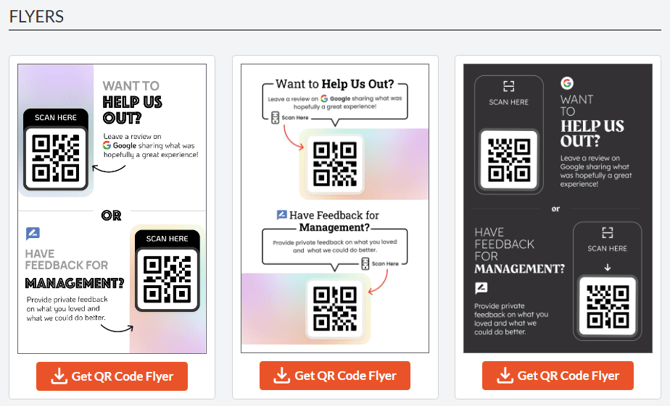
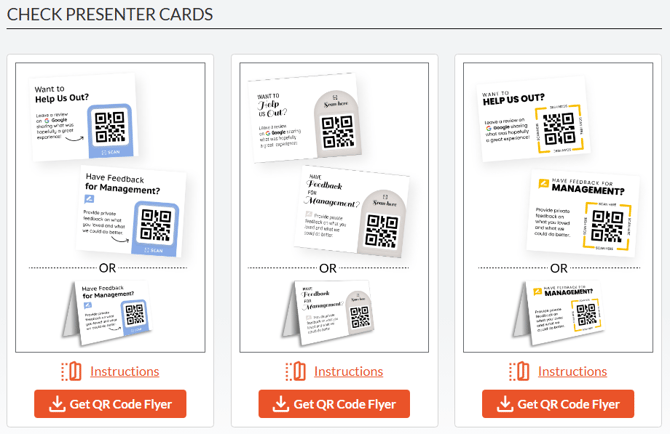
Table Tents & Check Presenter Cards
Designed for table-side placement or check presentation, making it easy for guests to scan and leave feedback before they leave.
More details on the Review Shield QR code flyers in our "How to Use Review Shield" article.
Downloading Your Flyers
It only takes a couple of clicks to start using your QR Code Flyers!
1. After you find a flyer or QR code you want to use, click Download This Flyer or Get QR Code Flyer, depending on the option you’re viewing.
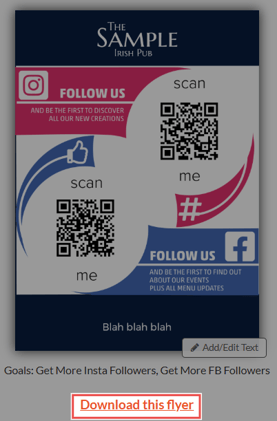
2. Open the downloaded file to either share it digitally or print it as you would any normal document.
3. Place the flyer where guests can easily see it, so they can scan the QR code.
💡 Best Practice: QR codes are meant to be scanned in person, so they work best when printed and placed in-house.
For digital sharing, it’s usually better to share the link that leads to the same page opened by the QR code, rather than sharing the QR code image itself.
Tips for Using QR Code Flyers Effectively
-
📍 Place flyers where guests naturally pause. Tables, host stands, entryways, bars, and check presenters tend to get the highest engagement.
-
📱 Make QR codes easy to scan. Print them large enough, place them at eye level when possible, and avoid glare or poor lighting.
-
🛡️ Print for durability. Consider laminating flyers or using protective holders to help them last longer in high-traffic or frequently handled areas.
-
✅ Test before printing in bulk. Confirm each QR code opens the correct page and displays properly on mobile.
-
🔄 Refresh and rotate flyers regularly. Update placements seasonally or swap out goals to keep content relevant.
-
🗣️ Train staff to point them out. A quick mention from servers or hosts can significantly increase scans.
⭐ Pro Tip: QR code flyers are most effective when they bridge the in-restaurant experience with your online presence. Use them to guide guests from their visit to what comes next — whether that’s exploring your menu, booking a return visit, or staying connected after they leave.