
Contents:
- Review Shield Overview
- Getting Started with Review Shield
- Understanding the Two QR Codes
“Want to Help Us Out?” — Public Google Reviews
“Have Feedback for Owners/Management” — Private Feedback - Viewing and Responding to Private Feedback
- Training Your Team
- WATCH: How To Use Review Response
Review Shield Overview
Review Shield helps you collect authentic feedback by guiding satisfied customers to share their experience on Google, while giving guests with concerns a private way to communicate directly with your team, ensuring they feel heard.
With Review Shield, you don’t just collect reviews — you shape the outcome:
✔️ Turn satisfied guests into 5-star reviewers at the moment they’re most likely to respond.
✔️ Encourage customers to share feedback privately, minimizing negative public reviews.
✔️ Protect and improve your overall rating — diners who use Review Shield have seen an average Google rating increase of nearly ½ a star.
⚠️ Review Shield is available as part of the Google Reviews feature.
Getting Started with Review Shield
If your account includes Google Reviews, you’ll be able to access the Review Shield page once your Google Business Profile is connected to SpotHopper.
Navigate to "Google & Reviews" from the left sidebar, then select the "Review Shield" tab at the top of the page.

This page includes printable QR code materials — such as table tents, check presenter cards, and single flyers — along with a section for guest feedback.
To get started, download your preferred design. Choose from three available styles, click Download PDF, and print the version that best fits your restaurant setup. Once printed, place the materials around your venue — on tables, check presenters, or near the exit — so guests can easily scan and share their feedback.
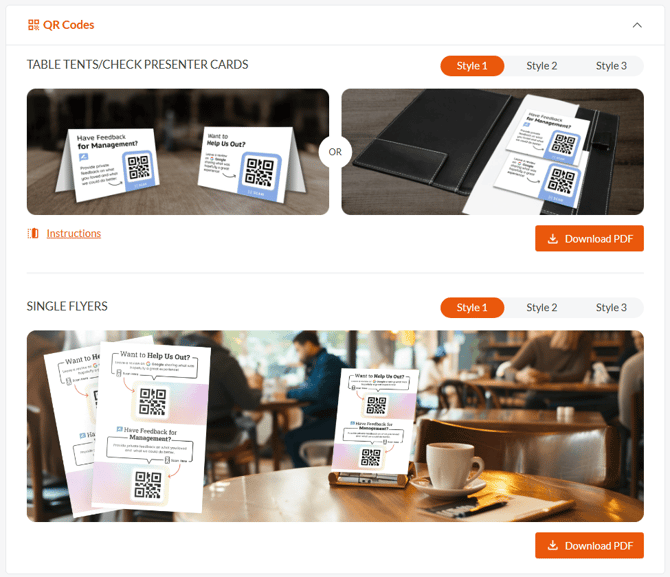
💡To print smaller copies, and/or to save on ink or paper, change the settings on your printer just before printing.
Understanding the Two QR Codes
Review Shield includes two QR codes, each designed for a different type of guest feedback — one for public Google reviews and one for private feedback shared directly with your team.
⭐"Want to Help Us Out?” — Public Google Reviews
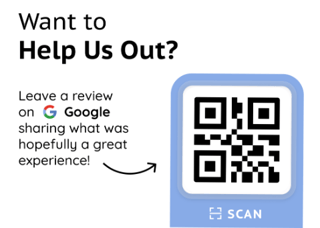
Purpose: This QR code directs satisfied guests to your Google Business Profile, where they can leave a public review.
When scanned: Guests are taken directly to Google’s review form, making it quick and easy to post feedback publicly.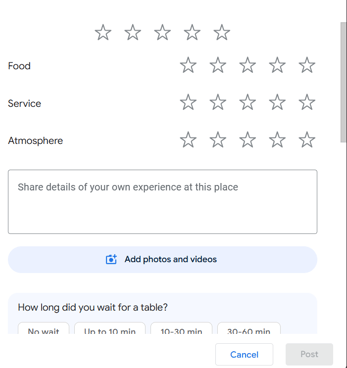
Best use case: For guests who had a great experience or gave positive verbal feedback.
📝 "Have Feedback for Owners/Management" — Private Feedback
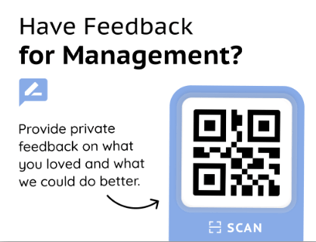
Purpose: This QR code gives guests a private feedback option to share their experience directly with your management team — not on Google.
When scanned: Guests fill out a short SpotHopper feedback form. Responses appear only in your dashboard, allowing you to review and follow up privately.
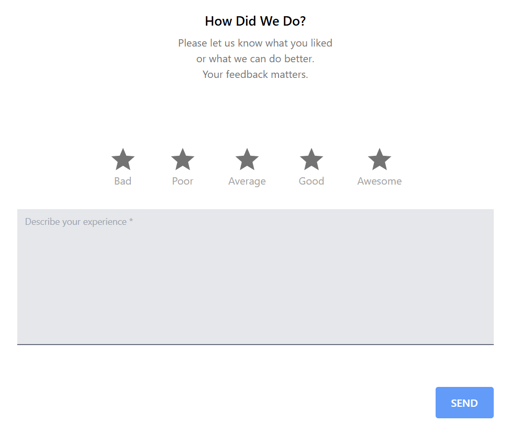
Best use case: For guests who may have had a mixed or less-than-perfect experience.
Viewing and Responding to Private Feedback
When guests share private feedback, their submissions appear in the Private Feedback section at the bottom of the Review Shield page.
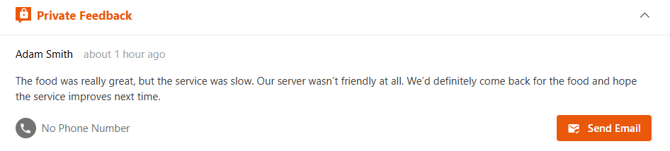
If a guest includes their name, email, or phone number, you’ll see their contact details alongside their message and can follow up directly by email or phone.
Guests can also choose to leave feedback anonymously by skipping the contact information step. While you won’t be able to respond to them directly, their comments still provide valuable insight into what guests are experiencing — helping you identify patterns, address issues, and improve overall service.
Training Your Team
Your staff plays a key role in how guests interact with Review Shield. Training them to recognize the right moments — and the right QR code — helps ensure every guest’s feedback ends up in the right place.
🧠 1. Know the Difference
It’s important that staff clearly understand which QR code is which. Guiding guests to the right one helps ensure positive reviews reach Google while more sensitive feedback is shared privately with your team.
👀 2. Pay Attention to Guest Cues
Encourage your team to be attentive to how guests feel during their visit.
-
If the guest seems happy or complimentary, direct them to the public Google review QR code.
-
If the guest seems unsatisfied or frustrated, suggest the private feedback QR code.
Giving guests a chance to share feedback privately helps them feel heard. This minimizes their need to post a public review.
🗣️ 3. Offer a Friendly Prompt
Staff should feel comfortable introducing the QR codes in a natural, upbeat way.
-
For happy guests:
"If you’ve enjoyed your visit, could you be so kind as to leave us a quick Google review? You can do it easily by scanning this QR code — it really helps us out!"
-
For guests who seem less satisfied:
"We hope you’ve enjoyed your visit! If you’d like to share your feedback with management, you can do that easily by scanning this QR code.”
💡 Using only the QR codes and designing your own flyers/cards? Keep the layout clean and make sure it’s easy to tell which code is which so guests scan the correct one.
WATCH: How to Use ReviewResponse | Increase Visibility on Google