
Contents:
Filling Out the Inquiry Form
Once your customers visit your Catering page, they’ll see your Catering Inquiry Form, where they can provide the details needed for their catering request. Most fields are required, while some are optional depending on your settings. The form includes:
Contact Information 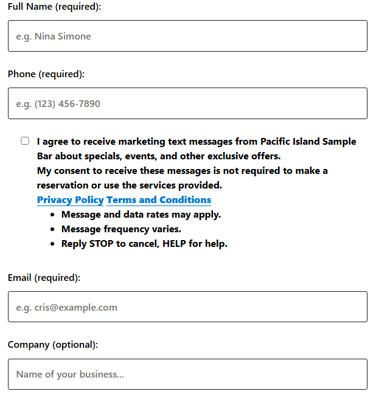
Guests start by entering their contact details:
-
Full Name (required)
-
Phone Number (required)
-
Email Address (required)
-
Company Name (optional)
If the texting permission setting is enabled, an opt-in checkbox will appear so that your customers can sign up for text marketing. This consent is optional and not required to submit the form.
Event Details
After providing their contact information, guests move on to the event details section.
-
Number of People (required)

-
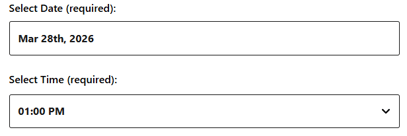
Preferred Date & Time (required) – The available time slots depend on your operating hours, blocked hours, and settings on your Parties page. If a date is unavailable, it will be grayed out.
-
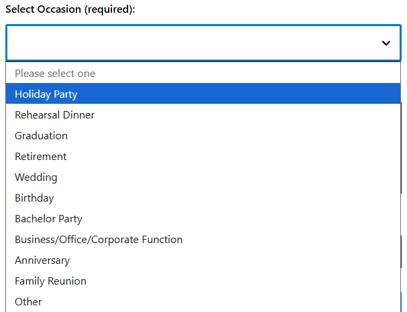
Occasion (required) – Guests can choose the type of event they’re celebrating (Birthday, Bachelor Party, Anniversary, etc.) The list of available occasions can be customized under your Party/Group Inquiries > Settings page.
-
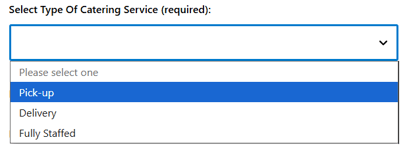
Type of Catering Service (required) - Depending on the options enabled on your settings page, guests can choose between pick-up, delivery, or fully staffed service.
-
Budget Per Person – Shown only if enabled on the Parties settings page. The pre-set default budget will be shown, but customers can enter their own estimated amount.

-
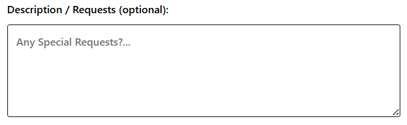
Description/Requests (optional) – An open-text field where guests can share additional information about their event, such as setup preferences, menu requests, or any specific requests they may have.
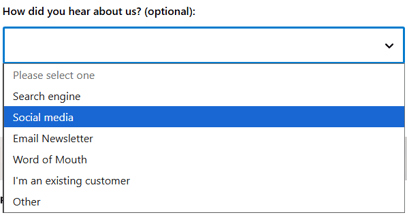
- How Did You Hear About Us (optional) – Located at the bottom of the inquiry form, this field lets guests select how they found your venue (e.g., Google Search, Social Media, Referral).
If you have Large Custom Orders enabled and your catering form includes the "Place/Schedule Order" button, customers can order catering packages directly without submitting an inquiry first.
When they click this button, they will be redirected to SpotHopper's Online Ordering page to complete their order.
To learn more about how customers place online orders, please refer to this article.
Inquiry Submission and Notifications
- After filling out all required fields, guests can click the "Submit" button at the bottom of the form.
- Once submitted, a message appears on the screen confirming that their request has been received:

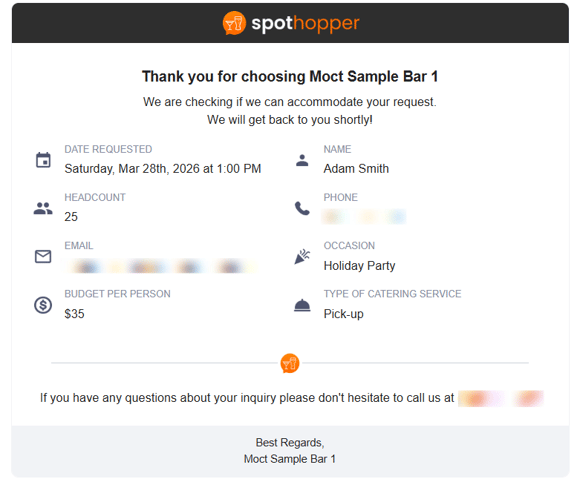
- At the same time, the guest will receive an email notification summarizing the information they submitted.
Note: As soon as an inquiry is submitted, it appears on your dashboard, and the inquiry details are automatically sent to the notification recipients listed on your Parties Settings page. - To save you time while managing inquiries, customers are automatically emailed when you change the status of their inquiry from the admin:
"Confirmed" Status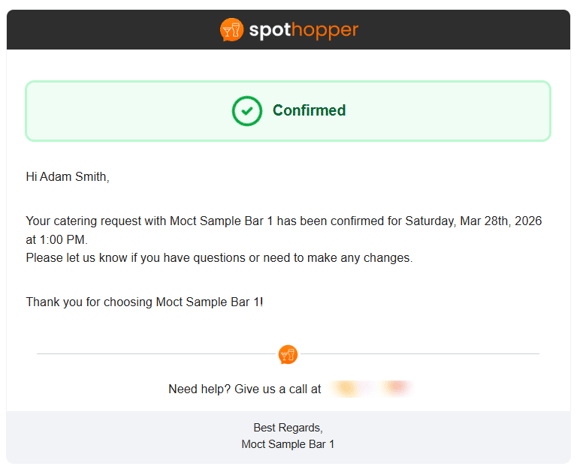
"Cancelled" Status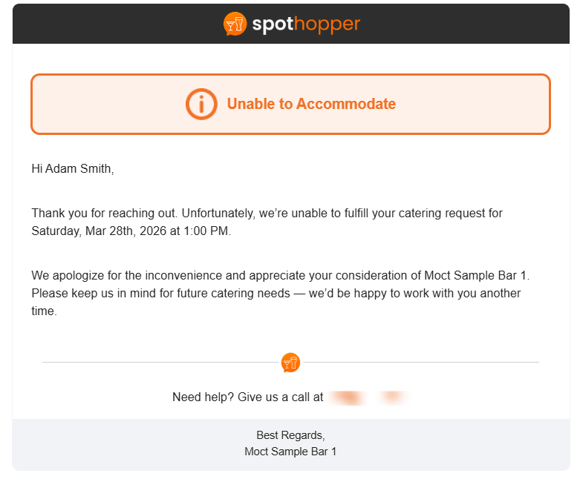
💡 Each inquiry captures the customer’s email and contact information. This ensures your venue can re-engage them with future promotions and events—so you never lose a potential guest after their initial inquiry.