
Contents:
- Filling Out the Reservation Form
Step 1: Find a Table
Step 2: Add Your Details - Reservation Submissions and Notifications
If Auto-Confirm is ON
If Auto-Confirm is OFF - WATCH: How to Activate & Start Using Reservations
WATCH: How to Activate & Start Using Reservations
Filling Out the Reservation Form
Once your guests visit your Reservations page, they complete the booking form in two steps.
Step 1: Find a Table
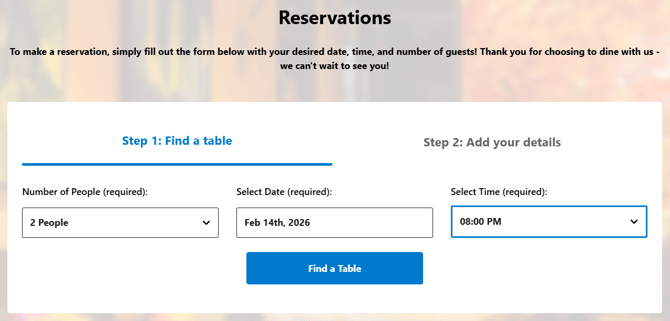
Guests begin by selecting:
-
Number of People (required)
-
Date (required)
-
Time (required)
The availability shown on the form is based on your configured operating hours, reservation settings, and any blocked dates or times.
If you have set up both inside and outside seating options, guests will be required to choose the seating area as well:
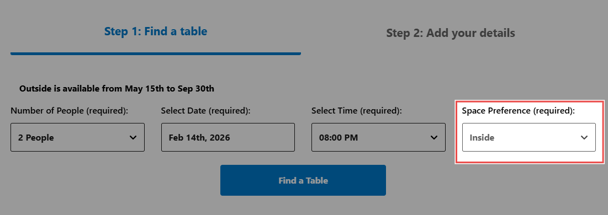
After choosing their preferred party size, date, and time, guests continue by clicking the "Find a Table" button.
Step 2: Add Your Details
Once a table is selected, guests are prompted to enter their contact information to complete the reservation.
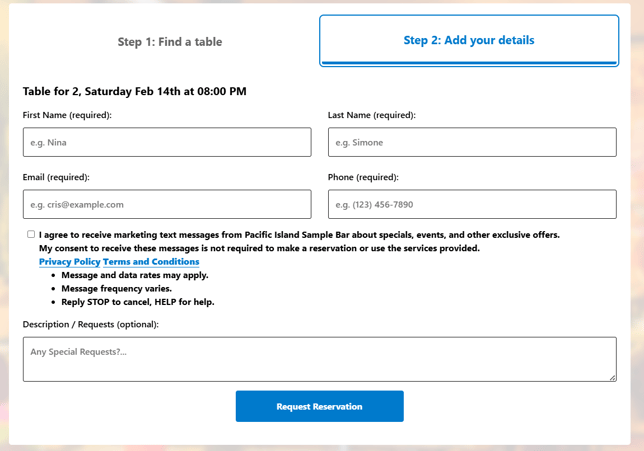
Guests provide the following information:
-
First Name (required)
-
Last Name (required)
-
Email (required)
-
Phone (required)
-
Description / Special Requests (optional)
If enabled in your reservation settings, guests may also see:
-
An optional SMS marketing opt-in checkbox
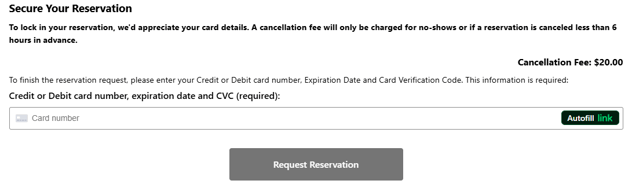
If you have set up a deposit or cancellation fee, the guest will have to provide their credit card details in order to submit their inquiry.
Reservation Submissions and Notifications
After completing the form, guests submit their booking using the button at the bottom of the reservation form. The label on this button — and what happens next — depends on your Auto-Confirm setting.
If Auto-Confirm is ON
The button will display Confirm Reservation.

When the guest clicks this button:
-
The reservation is immediately confirmed without any manual review:

-
The guest receives a confirmation email:
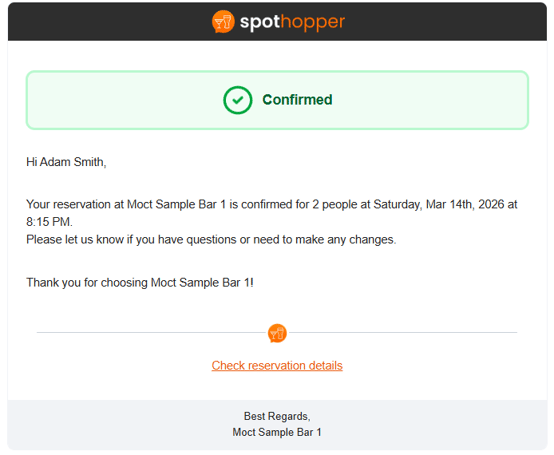
- The booking is automatically added to your reservation list
If Auto-Confirm is OFF
The button will display Request Reservation.

When the guest clicks this button:
-
The reservation is submitted as a received reservation and the guest sees the screen notification:

- They also receive a notification email:
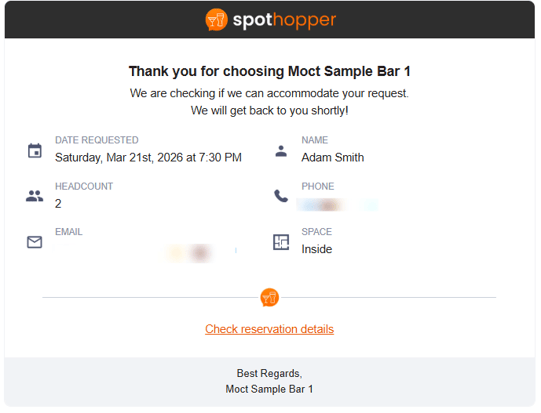
-
The booking is not yet confirmed, and your team must manually review and approve the request.
- After you confirm the reservation, your guest will receive the confirmation email:

- If you cancel the reservation, they will still be notified via email:

Within the email notification, the guest will receive a "Check Reservation Details” link. Clicking this link opens the Reservation Details page, where they can view their reservation status and full booking details, as well as add a comment or cancel their reservation.

💡Each inquiry captures the customer’s email and contact information. This ensures your venue can re-engage them with future promotions and events—so you never lose a potential guest after their initial inquiry.