
Contents:
- Activating the Feature
- Page Settings & Style
- Capacity Settings
- Timing Settings
- Auto-Confirm Reservations
- Automatic Reservation Reminders
- Texting Permission
- Notification Settings
- Payment Settings
- WATCH: How to Activate & Use Reservations
WATCH: How to Activate & Use Reservations
Activating the Feature
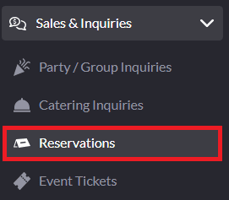
1. To begin, navigate to the "Reservations" tab under "Sales & Inquiries" on the left sidebar of your SpotHopper admin.
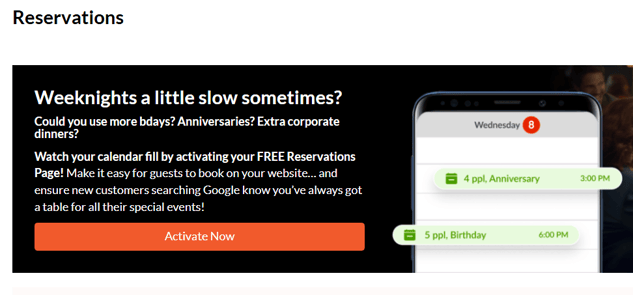
2. If the feature hasn't been activated yet, click the "Activate Now" button.
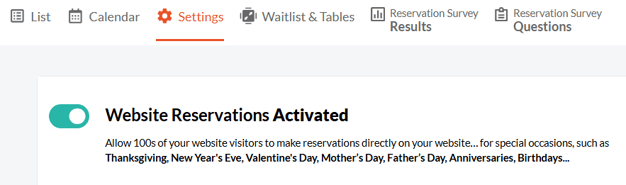
3. Go to the "Settings" tab at the top of the screen. With the toggle switched on, the feature is active—and this is where you’ll complete the rest of the setup.
Page Settings & Style
This section lets you customize the content and appearance of your Reservations page so it reflects your brand and provides clear information to guests.
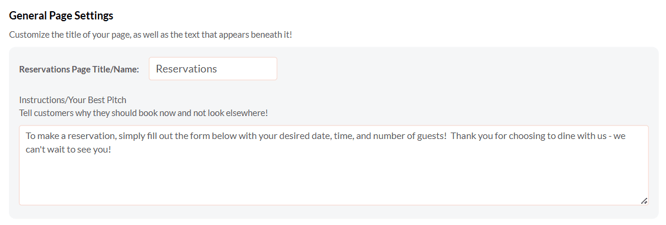
- Page Title/Name: Set the title that appears at the top of your page. Keep it simple (e.g., Reservations) or customize it to match your brand.
- Instructions: Add a short message that welcomes guests and encourages them to book. This is your chance to highlight anything special or note any important details.
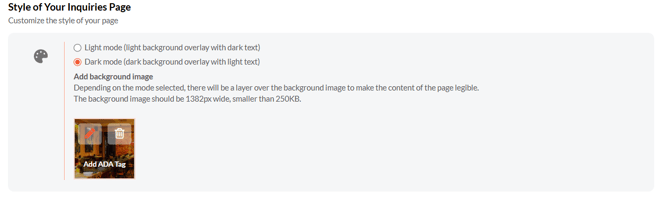
- Page Style: Choose between light or dark mode to match your brand’s aesthetic.
You can also upload a background image for a more personalized feel.
Capacity Settings
This section allows you to control where guests can be seated and how many reservations you can accommodate at any given time.
Choosing Your Seating Areas
Start by selecting whether guests can reserve seating inside, outside, or both.
-
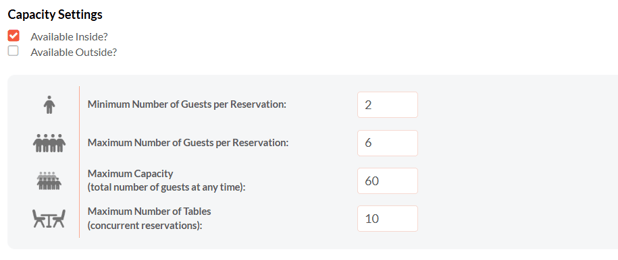
If your restaurant only seats guests indoors, check Available Inside only.
-
If you offer both indoor and outdoor seating, check both options so you can set separate limits for each area.
When selecting Available Outside, you’ll also be able to set the date range when outdoor seating is available. Leave this blank if it’s open year-round.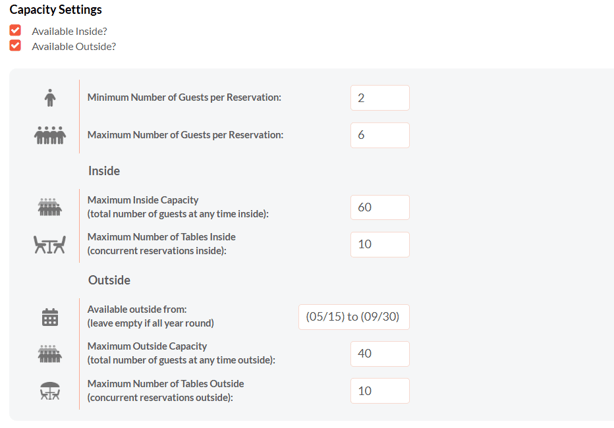
Setting the Capacity Limits
-
Minimum Number of Guests per Reservation: The smallest party size per single reservation.
-
Maximum Number of Guests per Reservation: The largest party size per single reservation.
-
Maximum Capacity: The total number of guests allowed in the selected area at one time.
This prevents the system from accepting more reservations than your space can safely accommodate. -
Maximum Number of Tables: The number of tables (concurrent reservations) that can be reserved at the same time.
For example, if you set the “Maximum Number of Tables” to 10, the system will not accept more than 10 separate reservations at once—no matter how many guests are in each party.
⚠️ Be sure to pay attention to your capacity limits. If the maximum number of guests or tables is reached, the system will not accept any new reservations until space becomes available.
Timing Settings
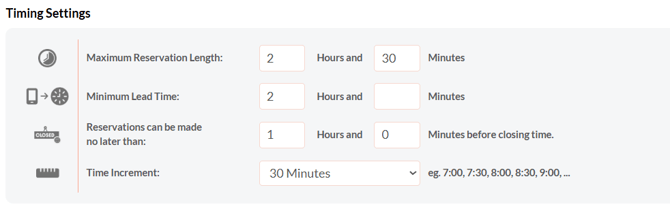
Timing Settings help you manage when reservations can be made and how long each booking lasts, ensuring a predictable and manageable schedule.
-
Maximum Reservation Length: Sets how long the reservation lasts. Once this time passes, the table becomes available for the next reservation.
For example, if all tables are booked at 7:00 PM and this is set to 1 hour and 30 minutes, the next available time will be 8:30 PM. -
Minimum Lead Time: Determines how far in advance guests must book their reservation.
If set to 1 hour and 30 minutes, for example, then guests cannot make an 8:00 PM reservation after 6:30 PM. -
Reservations Can Be Made No Later Than: Controls how close to closing time guests can book.
For instance, if this is set to 1 hour and your restaurant closes at 10:00 PM, the latest reservation time available will be 9:00 PM.
-
Time Increment: Sets the spacing between the available reservation times shown on the inquiry form calendar.
A 15-minute increment will display options such as 12:30, 12:45, 1:00, and so on. Available increments include 15, 30, 60, 90, or 120 minutes.
⚠️ Timing settings affect your availability! Make sure to review this section carefully so your reservation windows work as expected.
Auto-Confirm Reservations
The Auto-Confirm Reservations feature allows the system to automatically confirm new reservation inquiries on your behalf. If you prefer not to manually accept each request, simply turn this toggle on.

Auto-confirm is perfect if you receive a high volume of inquiries or simply want a faster process. It streamlines your workflow and speeds up approvals without any extra steps.
Automatic Reservation Reminders
The Automatic Reservation Reminder feature sends guests a reminder before their reservation, based on the timing you choose.
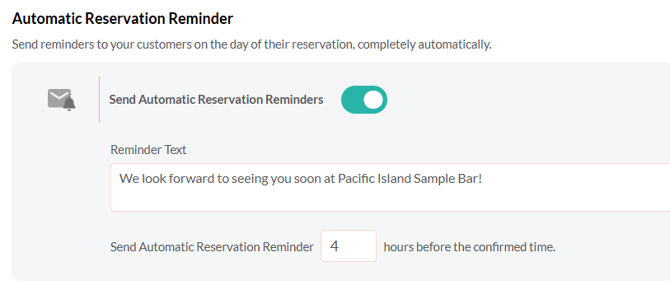
Turn on the toggle to enable reminders, customize the message your guests will receive, and set how many hours in advance the reminder should be sent.
This helps reduce no-shows and keeps guests informed without any manual effort.
Texting Permission
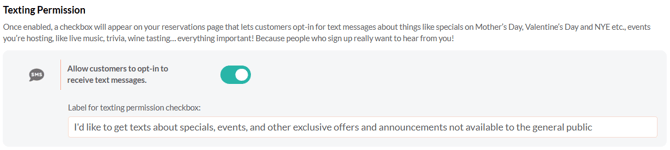
Enable this option to add an opt-in checkbox to your inquiry form, allowing guests to sign up for marketing text messages. Customize the label to make it engaging and encourage guests to opt in for updates they’ll enjoy.
Notification Settings
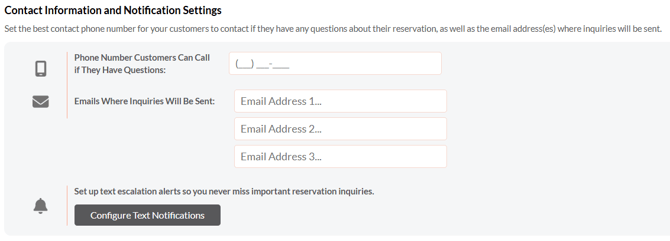
Use this section to set your contact details and notification preferences so guests can reach you and your team stays updated on new inquiries.
-
Phone number customers can call: Enter the best number for guests to reach your venue with questions.
-
Emails where inquiries will be sent: Add up to three email addresses to receive reservation inquiry notifications.
-
Configure Text Notifications: Use this button to set up text alerts so no inquiry falls through the cracks.
Payment Settings
The Payment Settings section at the bottom of the page allows you to set up deposits or cancellation fees to help prevent no-shows and reduce lost bookings.
⚠️To use deposits and cancellation fees, you must first connect your Stripe account to process online payments.
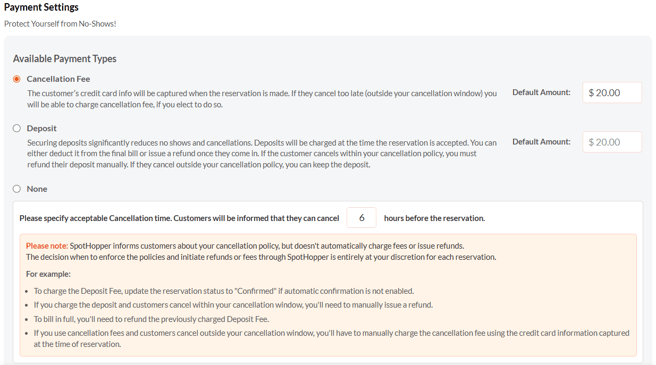
For full setup instructions, see our "Reservation Cancellations & Deposits" guide.
 💾 Don’t forget to save your changes! Click the Save Changes button in the lower-right corner when you're done updating your Reservation Settings.
👉 Want to see how customers make reservations on your website? See How Customers Make Reservations on Your Website.